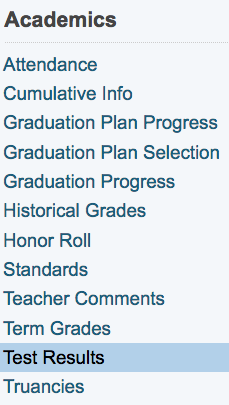
2. Under Academics, choose Test Results from the student pages menu. The Test Results page appears for that student.
PowerSchool: Adding Student "Test Scores" (Graduation Requirements, etc.)
In order to report data for graduation requirements and other assessments, we will be using the "Test Scores" feature of PowerSchool to enter data.
This feature is not available through PowerTeacher Gradebook, this "Test Scores" function is accessible via PowerSchool "admin" area only.
How to Enter Student Test Scores
1. On the start page, search for and select a student.
2. Under Academics, choose Test Results from the student pages menu. The Test Results page appears for that student.
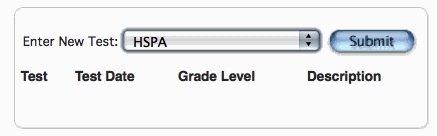
3. Choose a test from the Enter New Test pop-up menu. If selecting the test that currently appears, click Submit. The New Student Test: [Test Name] page appears.
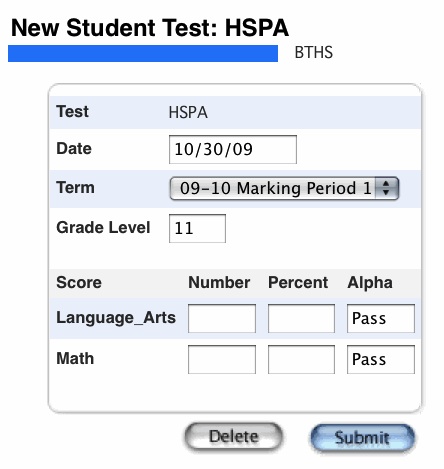
4. Use the following table to enter information in the fields:
Test: The selected test appears.
Date: Enter the date of the test using the format mm/dd/yyyy or mm-dd-yyyy. If you do not use this format, an alert appears. If you submit the date with an incorrect format, the date field is submitted as a blank entry.
Term: Choose the term from the pop-up menu.
Grade Level: Enter the grade level for the test.
Score: For each of the test scores, enter one or more of the following: the number score, the percent score, or the alpha score.
5. Click Submit. The Test Results page displays the new test score for that student.
6. Repeat the steps above to add additional Test Scores for that student, or choose another student or other menu to continue working in PowerSchool.
How to Edit Student Test Scores
1. On the start page, search for and select a student.
2. Under Academics, choose Test Results from the student pages menu. The Test Results page appears for that student.
3. Click the name of the test you want to edit. The Edit Student Test: [test name] page appears.
4. Edit the information as needed.
5. Click Submit. The Test Results page displays the edited test score for that student.
How to Delete Student Test Scores
1. On the start page, search for and select a student.
2. Under Academics, choose Test Results from the student pages menu. The Test Results page appears for that student.
3. Click the name of the test you want to delete. The Edit Student Test: [test name] page appears.
4. Click Delete. The Test Results page displays without the deleted test score.
If there are any questions, please contact the Tech Group.
~~~~~~~~~~~~~~~~~~~~~~~~~~~~~~~~~~~~~~~~~~~~~~~~~
Need help from the Tech Group? Use the Online
MCVSD "Information Technology Help Request" form
https://tg.mcvsd.org/techhelp/
~~~~~~~~~~~~~~~~~~~~~~~~~~~~~~~~~~~~~~~~~~~~~~~~~